Quick answer: is this the official GTA 6 PS5 button map?
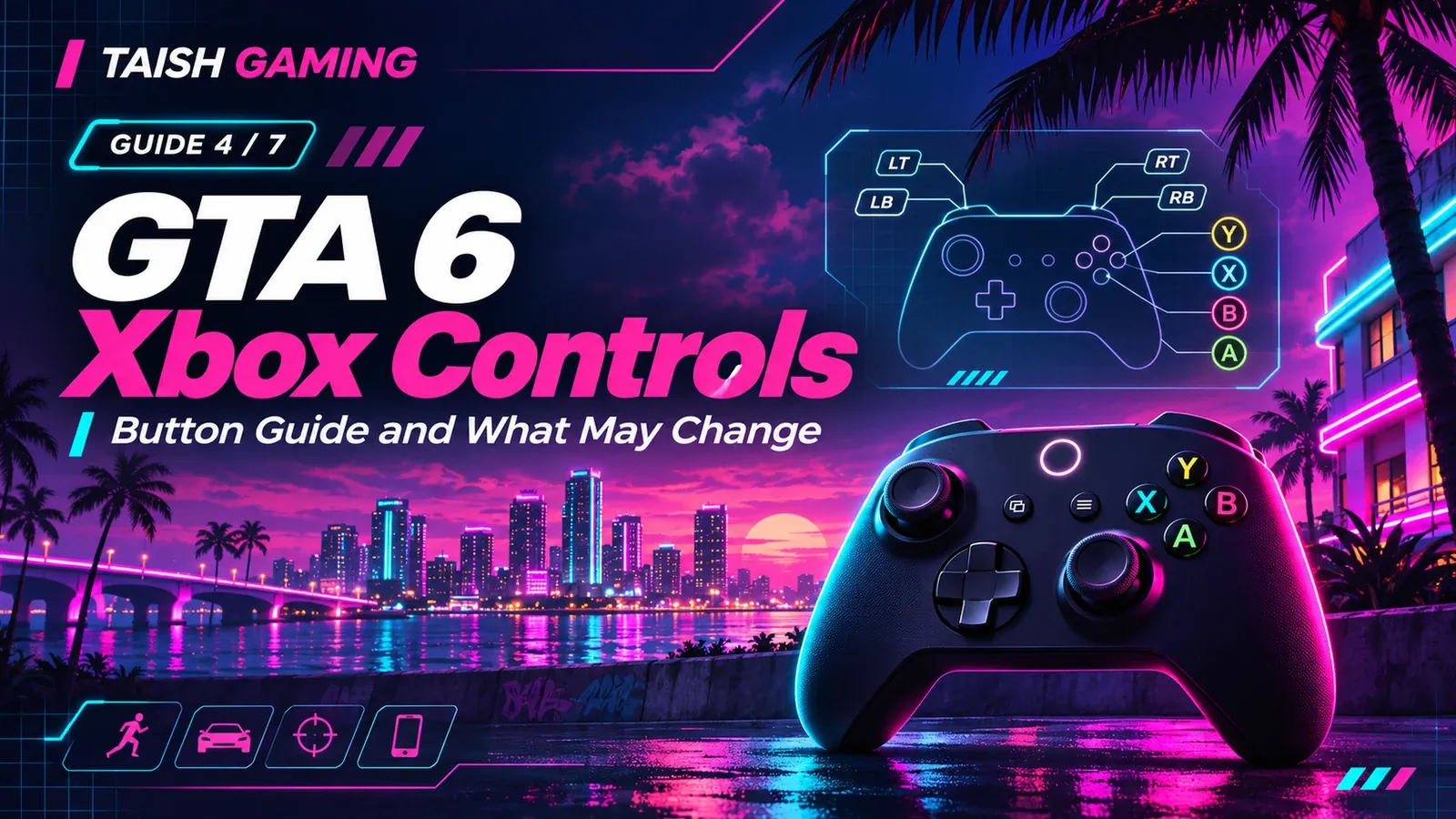
Not yet. As of 17 November 2026, Rockstar has not published a complete PS5 button chart for Grand Theft Auto VI. The table below is a GTA V legacy reference, not a verified retail GTA VI layout. Rockstar has released gameplay footage and announced DualSense haptics, but new GTA VI interactions and some reported control changes mean you should follow the actual on-screen prompts after launch.
GTA V legacy control reference on PS5 — not confirmed for GTA VI
| Action | GTA V PS-style reference | Status in GTA VI |
|---|---|---|
| Move / look | Left stick / right stick | Unverified final assignment |
| Sprint | Cross (X), tap or hold per GTA V mode | May change; do not memorize |
| Jump / climb | Square | Unverified |
| Enter / exit vehicle | Triangle | Unverified |
| Contextual interaction | D-pad Right in GTA V | GTA VI contextual prompts may differ |
| Reload / melee | Circle (context-dependent) | Unverified |
| Aim / fire | L2 / R2 | Unverified |
| Weapon wheel | Hold L1 | Unverified opening input |
| Take cover | R1 near cover | Unverified |
| Stealth mode | Press L3 | Unverified |
| Open phone | D-pad Up | Unverified |
| Character switching | Hold D-pad Down in GTA V | GTA VI switch button not confirmed |
Why the status warning matters: third-party preview reporting suggests Rockstar may use L3 for sprinting in GTA VI. This is not a published full control guide from Rockstar. Do not mix preview claims with the legacy scheme and then label the result “official.”
Driving: a GTA V reference, not a GTA VI promise
| Driving action | Legacy PS5-style input |
|---|---|
| Accelerate / brake | R2 / L2 |
| Steer | Left stick |
| Handbrake | R1 (GTA V baseline only) |
| Horn | Press L3 |
| Enter / leave vehicle | Triangle |
| Change radio station | D-pad Left / Right |
Some preview reports also describe a changed handbrake button. Until the retail controls menu can be checked, treat both reports and the legacy R1 entry as unresolved for GTA VI.
What Rockstar confirms about DualSense
Rockstar’s 10 November Newswire announcement says GTA VI has high-fidelity DualSense haptic feedback and uses PS5’s Tempest 3D Audio. PlayStation’s product page also lists vibration and trigger-effect support. That confirms supported hardware features, not which in-game action activates which trigger resistance or vibration pattern.
How to adjust your PS5 controller today
-
Open PS5 Settings > Accessories > Controller (General).
-
Adjust Vibration Intensity and Trigger Effect Intensity to a comfortable level. These are real PS5 system options; the specific GTA VI default is not known.
-
If you need visual or control accessibility options, inspect Settings > Accessibility before launch. Do not assume GTA VI itself provides complete per-button remapping.
-
When GTA VI unlocks, check its own controls page for movement, sprint, reload, cover and handbrake. Record the actual assignments and update this reference with screenshots and the game build used.
Frequently asked questions
How do I switch between Lucia and Jason on PS5?
Character switching appears in promotional gameplay, but the final controller shortcut is not available in a published Rockstar control chart. Holding D-pad Down is the GTA V precedent, not a confirmed GTA VI instruction.
Is there DualSense adaptive-trigger support?
PlayStation lists trigger effects, and Rockstar confirms high-fidelity haptics. The exact behavior during driving and gunplay is not yet established by first-hand retail testing.
Can I change buttons on PS5?
PS5 has controller and accessibility-level options, including supported controller profiles. The GTA VI in-game remapping range has not been published.
For the combined platform comparison, visit Taish Gaming’s existing /controls reference; the table there should use the same provisional labels as this article.
Primary sources and verification
Rockstar: official pre-load and DualSense feature announcement — https://www.rockstargames.com/newswire/article/89834o94713o21/pre-load-grand-theft-auto-vi-now
PlayStation: game listing and trigger-effect support — https://www.playstation.com/en-us/games/grand-theft-auto-vi/
PlayStation Support: controller system settings — https://www.playstation.com/en-us/support/hardware/adjust-general-controller-settings/