Quick answer
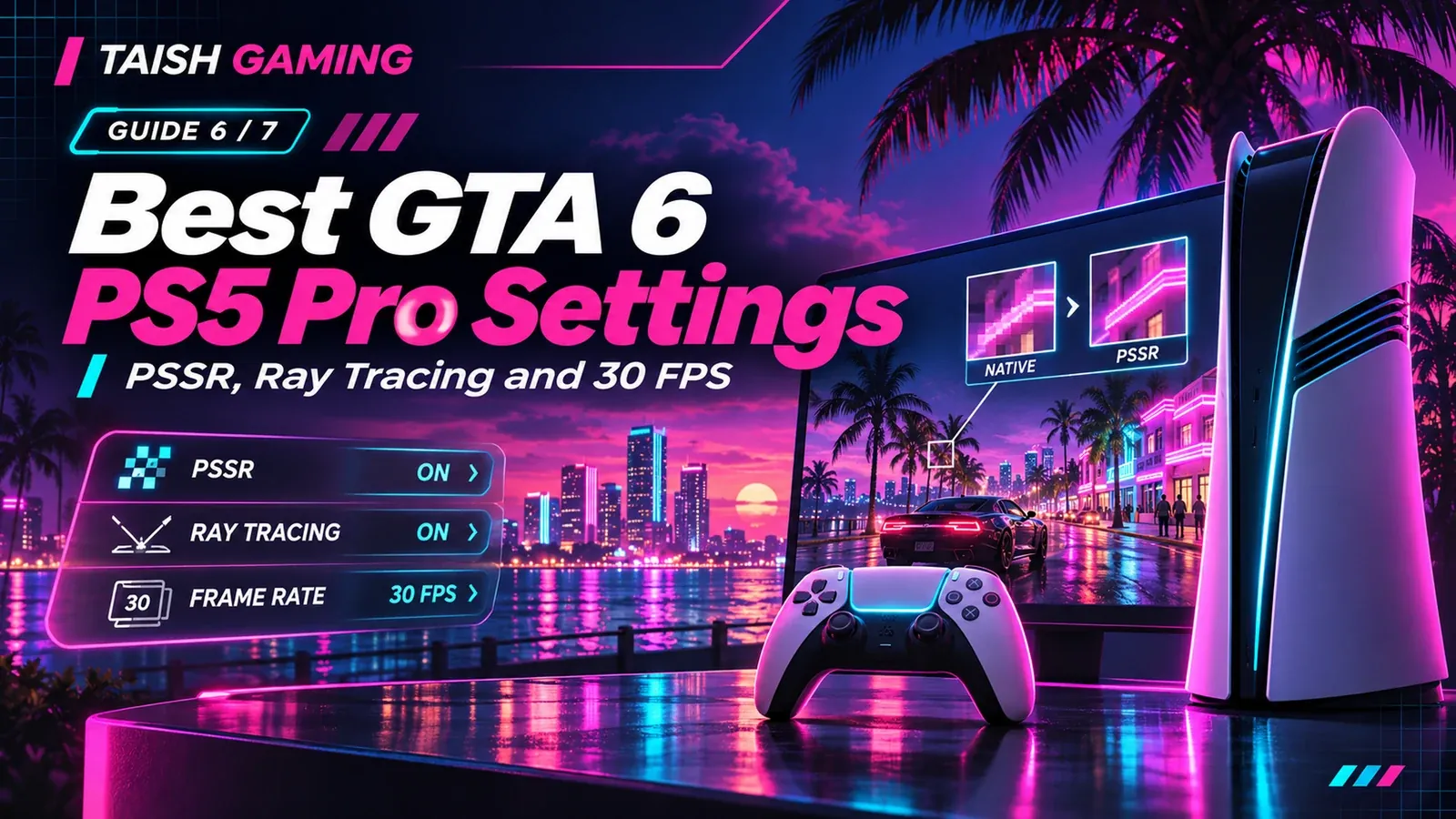
Rockstar says GTA VI on PS5 Pro uses PlayStation Spectral Super Resolution (PSSR) for greater image clarity and ray-traced shadows that the publisher describes as Pro-only. Its stated frame-rate target remains 30 FPS, the same target announced for other consoles. Sony and Rockstar have not published a verified set of GTA VI-specific Pro graphics presets, toggles or internal rendering resolutions.
What the PS5 Pro adds — and what it does not
| Feature | Base PS5 | PS5 Pro |
|---|---|---|
| Rockstar-stated frame-rate target | 30 FPS | 30 FPS |
| PSSR enhancement for GTA VI | Not announced | Rockstar-confirmed |
| Rockstar-advertised ray-traced shadows | Not included in Pro-only statement | Rockstar-confirmed, Pro-only |
| Complete GTA VI graphics mode list | Unpublished | Unpublished |
| Pro-exclusive gameplay/story | Not announced | Not announced |
PSSR is Sony’s image reconstruction technology, not proof of a 60 FPS mode or a fixed 4K internal rendering resolution. The final resolution and image-quality trade-offs require game-build measurements, not deductions from console marketing.
Recommended PS5 Pro setup you can verify today
-
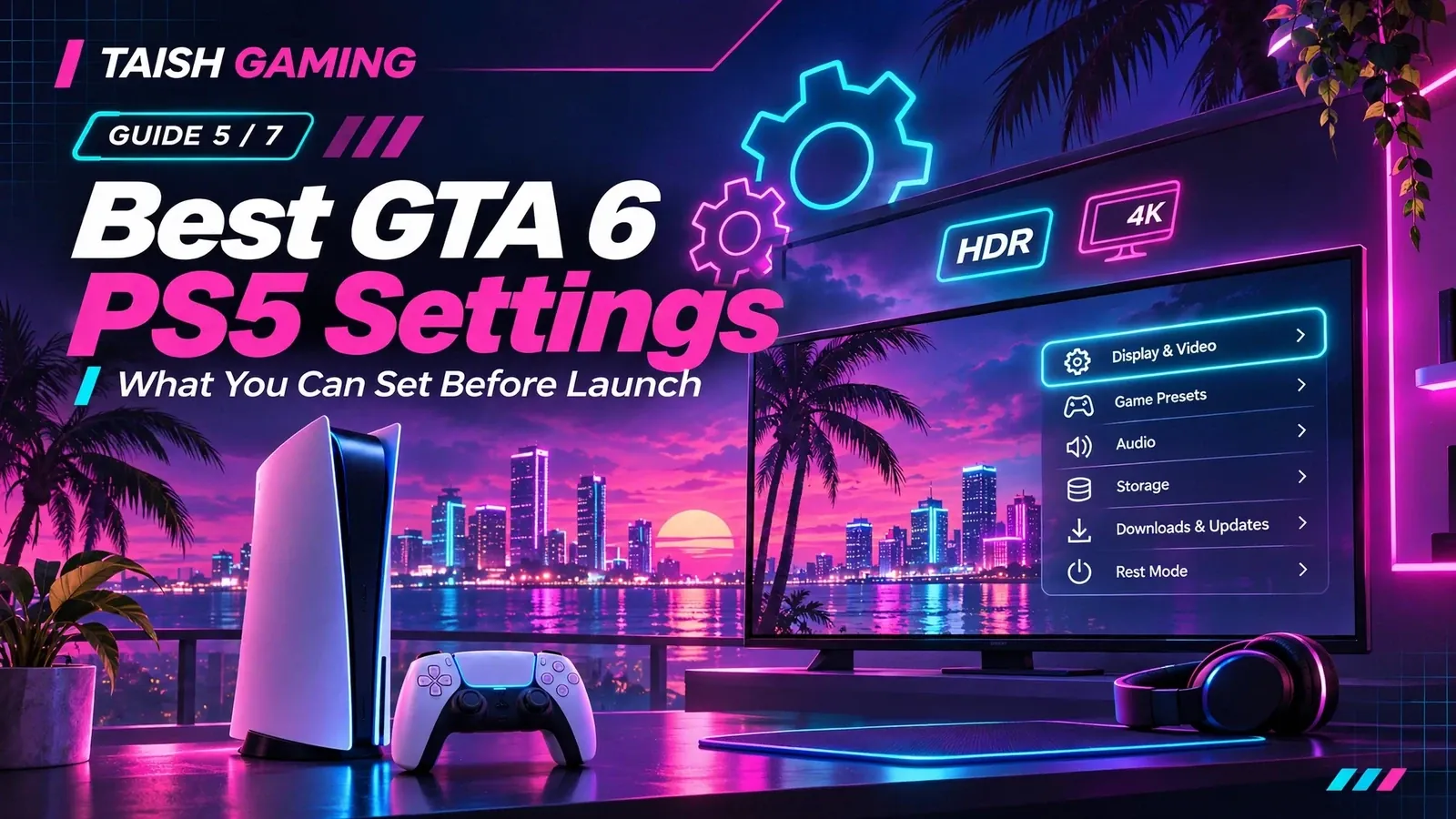
In Settings > Screen and Video > Video Output, check the current signal, Automatic resolution and the capabilities reported for your connected TV or monitor.
-
For an HDR-capable screen, use HDR > On When Supported and run Adjust HDR. Avoid changing TV brightness to an arbitrary value claimed to be “best for GTA 6” when no controlled test exists.
-
Leave the PS5 Pro output options, including supported 120 Hz/VRR features, configured for your display. They do not override Rockstar’s 30 FPS target or create an unannounced mode.
-
Sony provides a PS5 Pro system option named Enhance PSSR Image Quality for certain compatible games. This is a console-level switch, not confirmation that GTA VI exposes or benefits from that toggle. Do not claim a GTA VI benchmark result without testing.
-
Check DualSense vibration/trigger-effect intensity and the correct audio output. PS5 Tempest 3D Audio and haptic feedback are announced for the PS5 family.
-
Keep the game updated and sufficient free storage available. Rockstar lists up to 212 GB for installation, depending on the device.
After release: how to judge the actual Pro advantage
For a fair comparison, use identical scenes and identical TVs or display settings on base PS5 and PS5 Pro. Observe fine detail, shadow stability, motion clarity, frame pacing and any rendering artifacts at the same time of day in-game. If a selectable graphics option exists, record its exact name and effect. Do not turn an image-quality preference into an unsupported “FPS boost” claim.
Is buying a PS5 Pro worth it specifically for GTA VI?
It depends on how much you value sharper reconstructed imagery and the advertised ray-traced shadows. The announced advantage is visual, not a guaranteed higher frame-rate tier. If you already have a base PS5 and prioritize 60 FPS over ray-tracing quality, the official pre-launch information offers no basis to promise that a Pro upgrade will meet that goal.
Frequently asked questions
Will GTA 6 run at 60 FPS on PS5 Pro?
No 60 FPS mode is officially announced. Rockstar states a 30 FPS target for all supported console versions.
Is PSSR confirmed for GTA 6?
Yes. Rockstar explicitly names PSSR for the PS5 Pro version. It has not published the game’s internal resolution or detailed PSSR options.
Can I turn ray tracing off?
No official in-game GTA VI setting has been documented to confirm a ray-tracing on/off switch.
Do I need a 120 Hz TV for GTA VI on Pro?
Rockstar has not advertised 120 FPS gameplay. A 120 Hz display can support other PS5 features, but it is not a stated GTA VI requirement.
Related reading: base PS5 settings guide and Taish Gaming’s GTA VI console-FPS article. Keep the game settings and PS5 system settings clearly separated.
Primary sources and verification
Rockstar: PS5 Pro PSSR, shadows and frame-rate statement — https://www.rockstargames.com/newswire/article/89834o94713o21/pre-load-grand-theft-auto-vi-now
PlayStation Support: video-output and PSSR console options — https://www.playstation.com/en-us/support/hardware/ps5-4k-resolution-guide/
PlayStation Support: HDR calibration — https://www.playstation.com/en-us/support/hardware/ps5-enable-adjust-hdr/
PlayStation Support: controller effects — https://www.playstation.com/en-us/support/hardware/adjust-general-controller-settings/